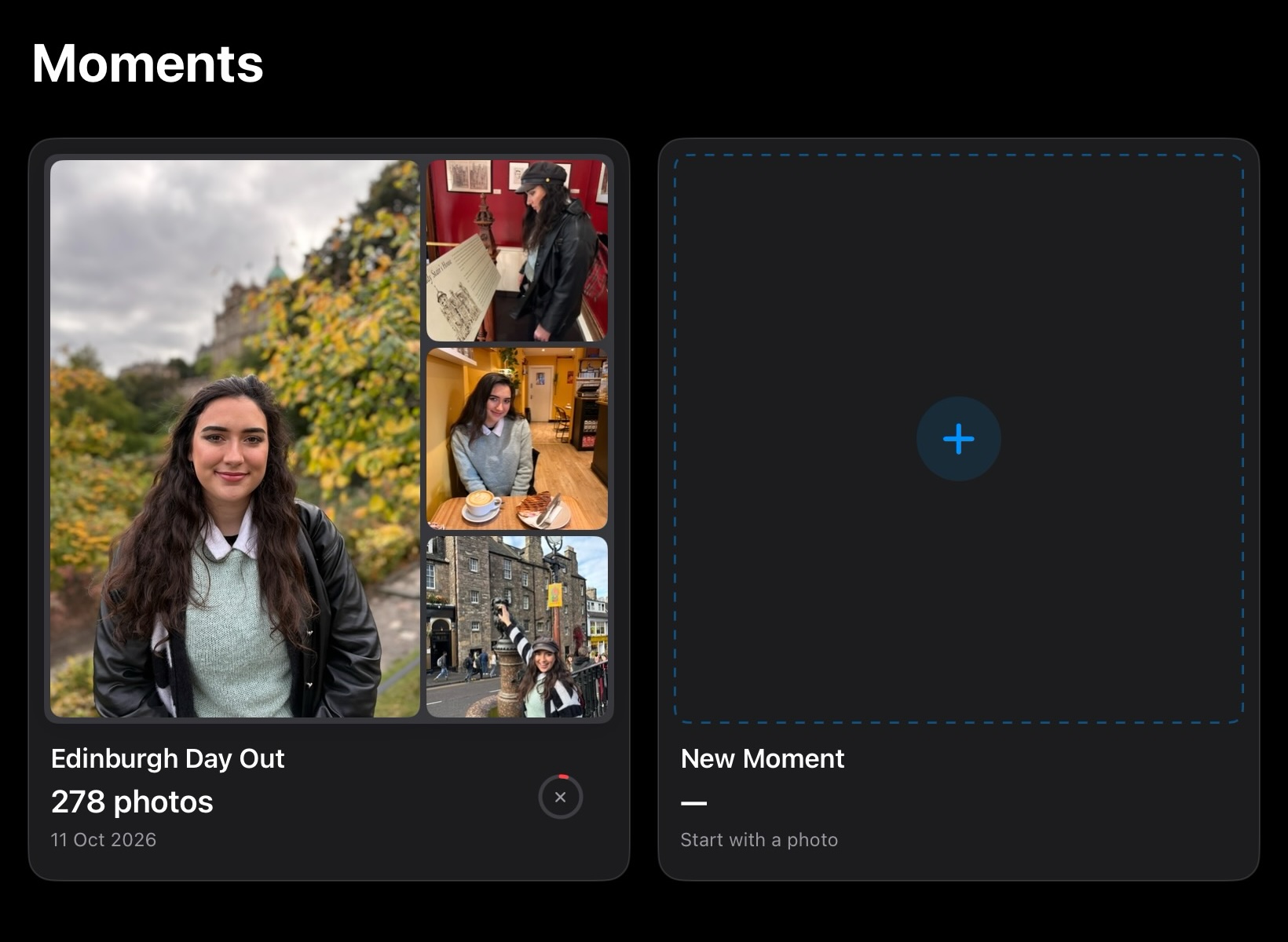
A wee wonderful app for sorting through your photos, one moment at a time. Built for iPhone and iPad, working directly with your Apple Photos library. No account, no import needed.

I’m often taking 20 versions of the same photo. A mix of portrait, landscape, perhaps several attempts to get everyone looking at the camera. It was tricky to sort through them, and that’s why I made Moments to provide a nice workflow for it.
Moments breaks that job into little piles. Choose a day out, a holiday, or just an afternoon, then work through the photos at your own pace. Keep your favourites, archive the extras, or mark a few for deletion.
What you get at the end of it, is two albums right in you apple photos. One as the sorted set of good ones, and a second album with all the rest. E.g. ‘Paris’ and ‘Paris (archive).’
How To Use
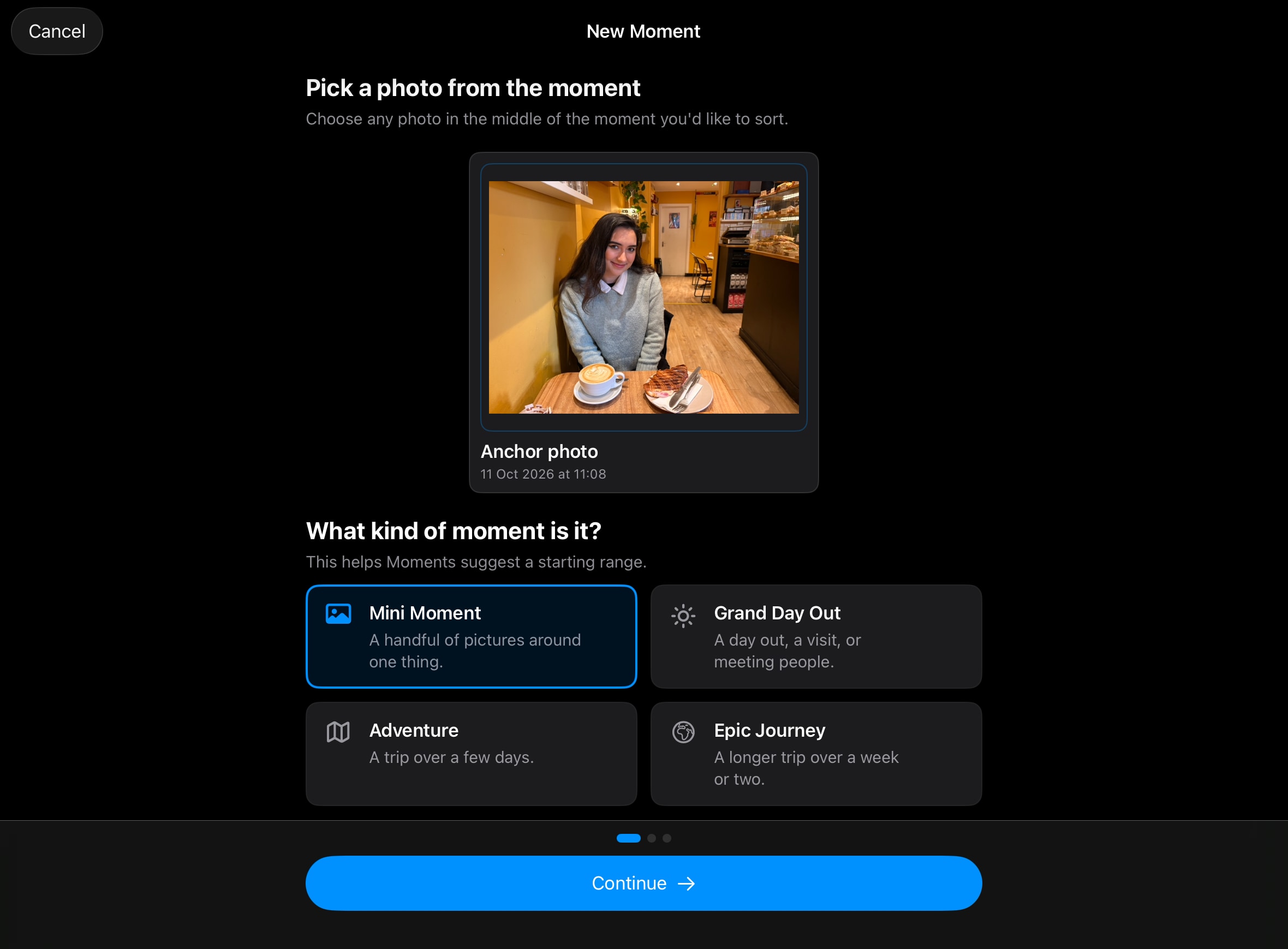
1) Create a Moment
Start by creating a new Moment and choosing a photo around the middle of the occasion you’d like to sort. Pick a rough length — Mini Moment (few hours), Grand Day Out, Adventure (few days), or Epic Journey (week or two) - and Moments will try to find the surrounding photos.
You can adjust the start and end photos as needed or choose the range manually if you prefer. Give your Moment a name, such as “Weekend in Edinburgh” and two albums will be created in Apple Photos (normal and archive) for the photos to be sorted into.
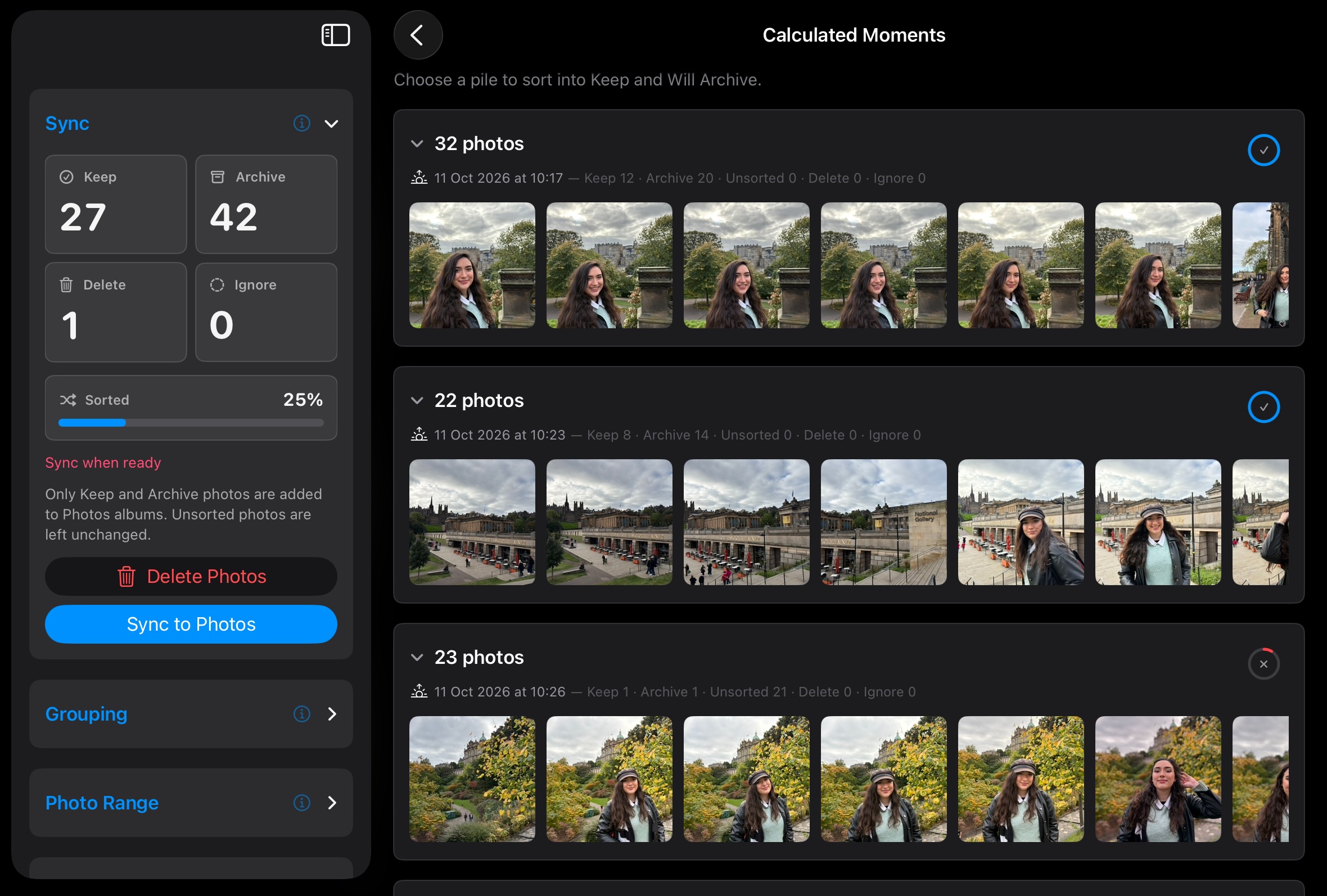
2) Find Your Piles
Moments groups photos using visual similarity, time, and location. So similar shots sit together, making it easier to compare them without jumping around your library. Photos within each pile run from oldest to newest.
If the piles feel too broad or too small, open the Grouping controls. Experiment with adjusting the Visual Similarity, Time, and Location to make the matching stricter or broader. The piles update automatically, and your sorting choices stay attached to the photos.
Photos that don’t match another pile appear in “Ungrouped photos”, so you can review those too. Larger Moments are prepared in smaller batches, letting you work through a little at a time.
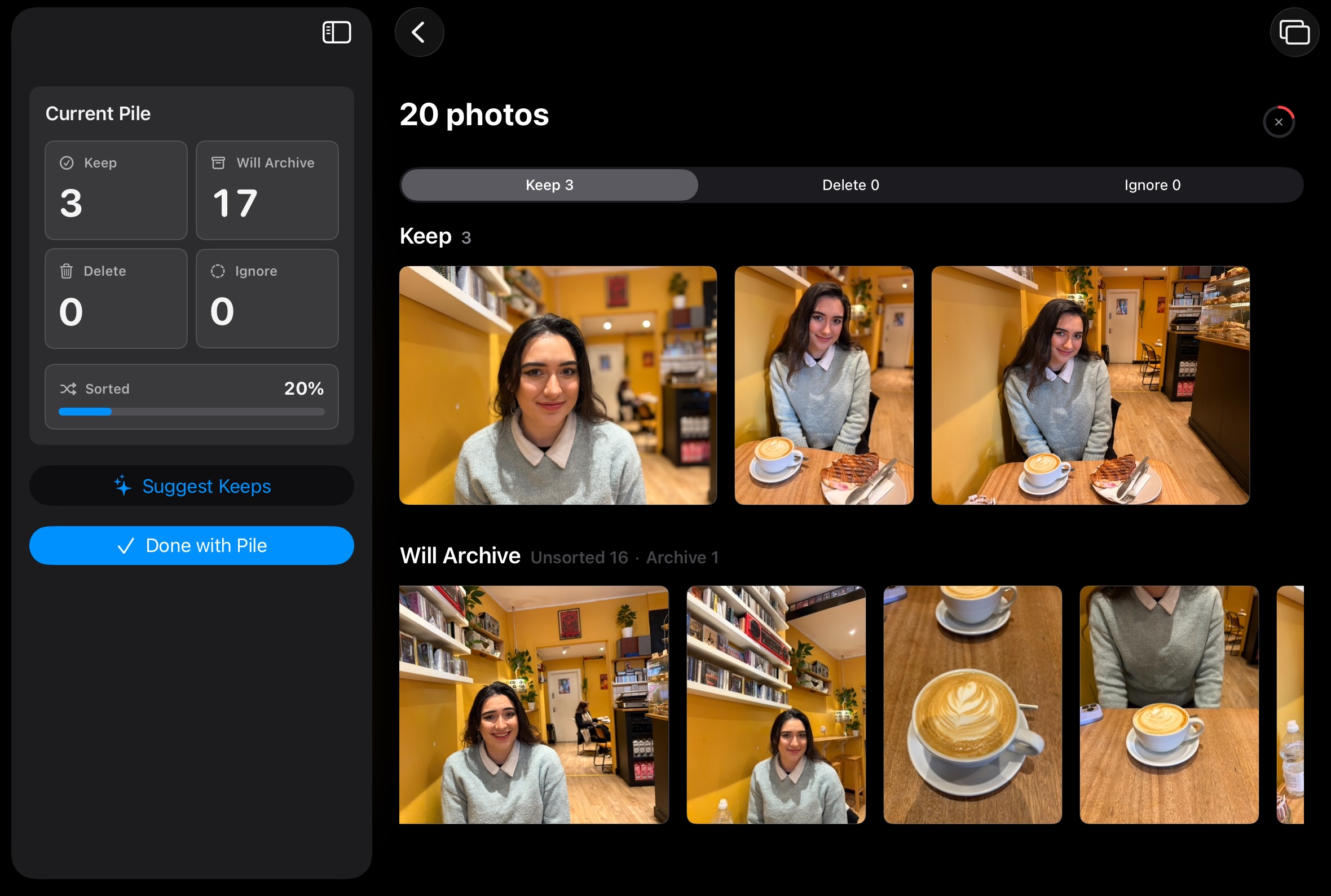
3) Sort Your Photos
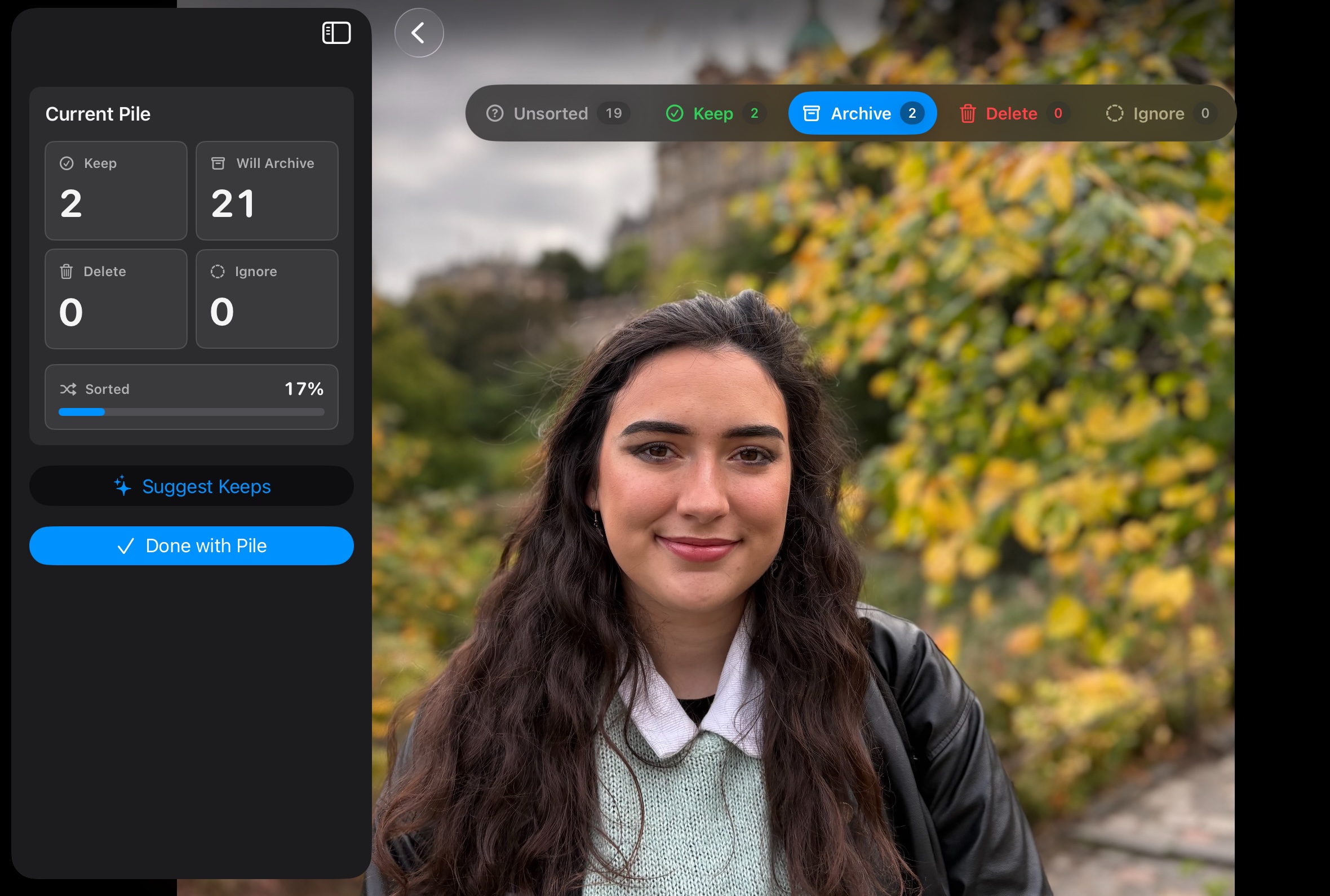
Open a pile to start reviewing. Choose Keep, Delete, or Ignore, then tap photos in “Will Archive” to move them into your chosen group.
- Keep — the photos you want in your main Moment album.
- Archive — the extra shots you want to keep in a separate Archive album.
- Delete — photos you’re marking for a separate deletion step later.
- Ignore — photos you want to leave out of the album sorting.
Changed your mind? Tap a photo in the top row to move it back to “Will Archive”, or press and hold it to choose another action.
Once you’ve picked your keeps, tap the pile’s progress circle to mark the remaining unsorted photos as Archive. Simply appearing in “Will Archive” doesn’t change a photo in Apple Photos — it still needs an Archive decision before it will be synced.
4) Get a Little Help
Use Suggest Keeps if you’d like a starting point. Moments tries it’s best to pick out a set of photos from the pile. Where faces are prominent it even looks at them and will pick out shots where the person isn’t blinking. It marks its picks as Keep; you can review and change those choices afterwards.
For a closer look, open the slideshow. Browse larger versions of the photos and make your sorting choices there too.
5) Sync to Apple Photos
When you’re ready, tap Sync to Photos. Only photos marked Keep or Archive are added to those albums. Ignored photos, delete candidates, and photos you haven’t sorted are left out of that sync.
Archiving doesn’t hide photos from your library or free up storage. It gives the extra shots their own album, while your main album holds the photos you want to revisit.
Deletion is separate. Marking a photo Delete doesn’t remove it immediately, and syncing doesn’t delete it either. Use Delete Photos and confirm when you’re ready; those photos move to Recently Deleted in Apple Photos so if you make a mistake you can still get it back.

A Few Handy Tips
Take your time. Your Moments and sorting choices are saved, so you can return and pick up where you left off.
Missing photos? If you’ve given Moments access to selected photos only, it can only work with those. Use Adjust Selected Photos to share more, or review the app’s Photos permission in Settings. Photos stored in iCloud may also need time to download.
Added more photos later? Someone Airdrops another hundred photos from the trip! Not to worry, on the home screen tap the little menu and use Rescan Range to check for new photos within the Moment’s date range.
Try a smaller range. A single afternoon or day out is a good place to begin while you get a feel for the piles and controls.
Support
I hope you enjoy using the app, if you have feature requests or feedback you can reach out to me at the following.
Try It Out!
Sort your photos, pile by pile. App Store.
Enjoy :)