A wee wonderful app designed to organize and curate your photo collections with powerful tagging. Your library syncs with iCloud, so your albums are available across all your Apple devices. Built for iPhone, iPad and Mac with a beautiful masonry layout and tag filtering.

How To Use
1) Create Albums
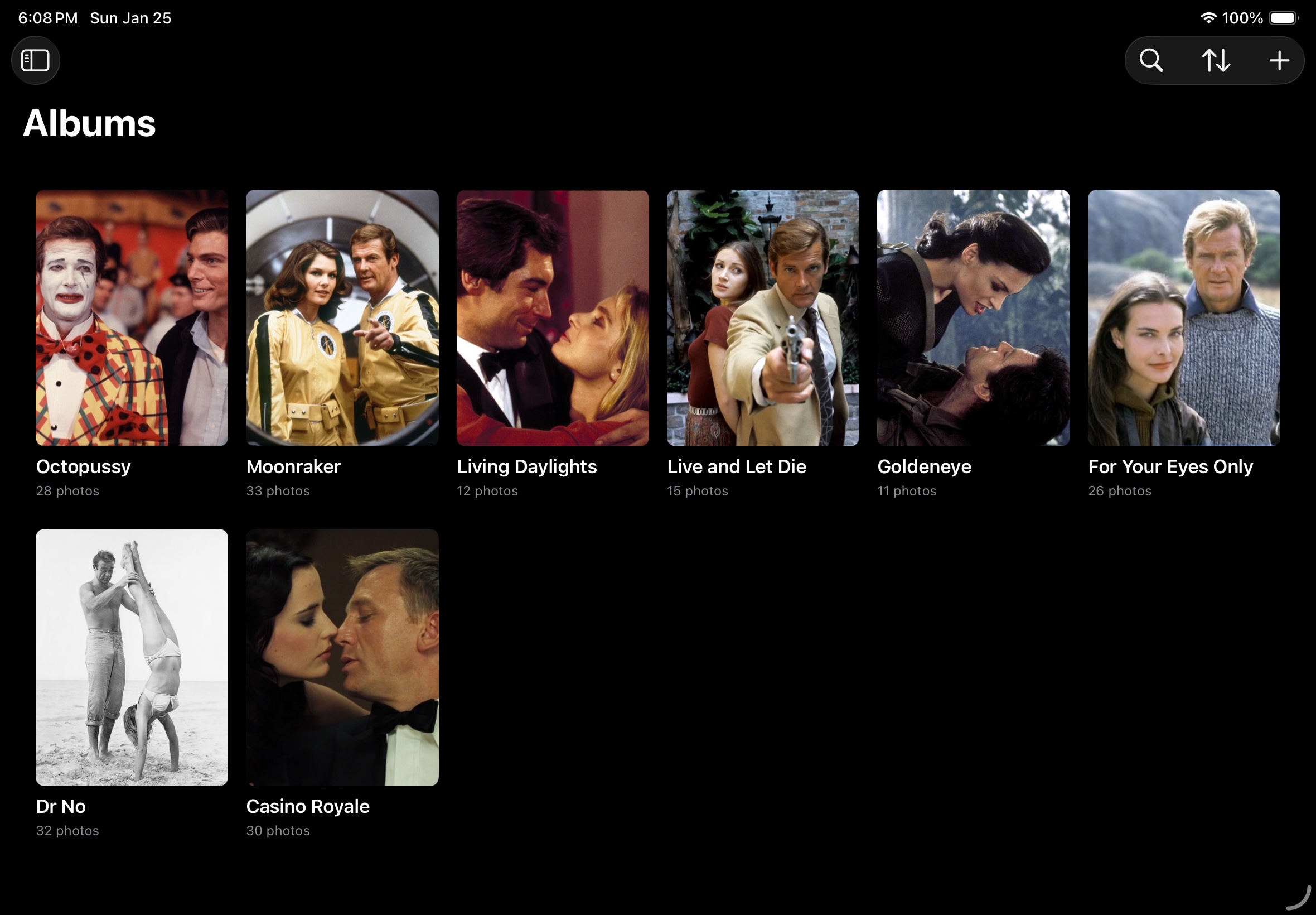
Start by creating your first album from the main library view. Simply tap the plus button and give your album a name. Albums are your primary way of organizing photos - think of them as your curated collections. You can create as many albums as you need, whether for projects, trips, inspiration boards, or any other collection you want to keep together.
2) Add Photos
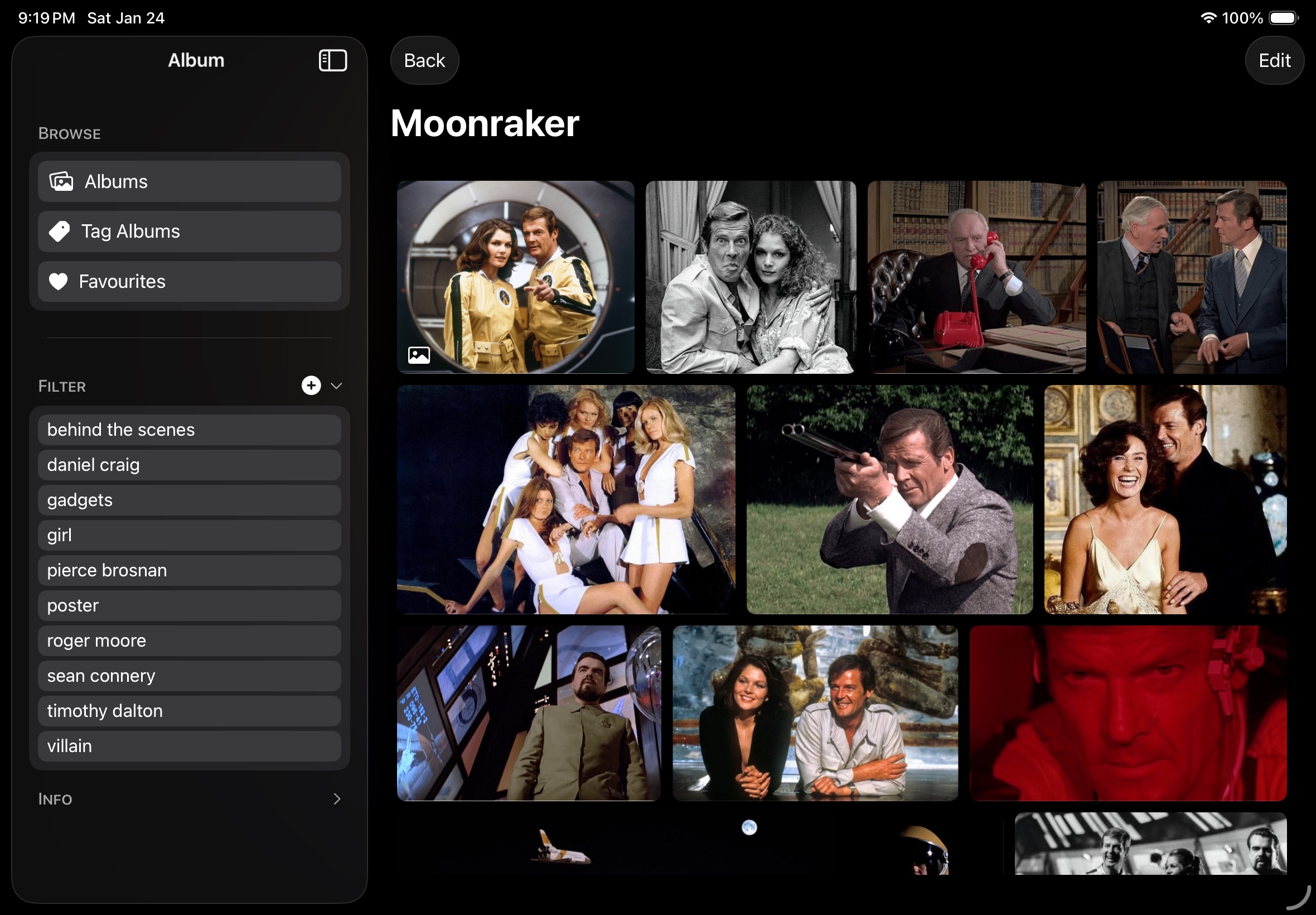
Once inside an album, tap ‘Edit’ to enter edit mode where you can add photos from your device. (Tip - Drag a folder here on Mac and it will automagically rename itself and add contents). Photos are displayed in a beautiful masonry layout that adapts to each image’s aspect ratio, giving you a Pinterest-style gallery that makes the most of your screen space. You can reorder photos by dragging them around, and set a cover image for your album by long-pressing any photo and selecting ‘Set as Cover’.
Double-tap any photo to mark it as a favourite - these special photos can be quickly accessed later from the dedicated Favourites view.
3) Powerful Tagging System
One neat feature is the flexible tagging system. You can tag individual photos or entire albums with custom tags. In the sidebar, you’ll see all your tags listed - simply tap any tag to filter your view to only photos with that tag. You can select multiple tags to create AND filters (photos must have all selected tags to appear).
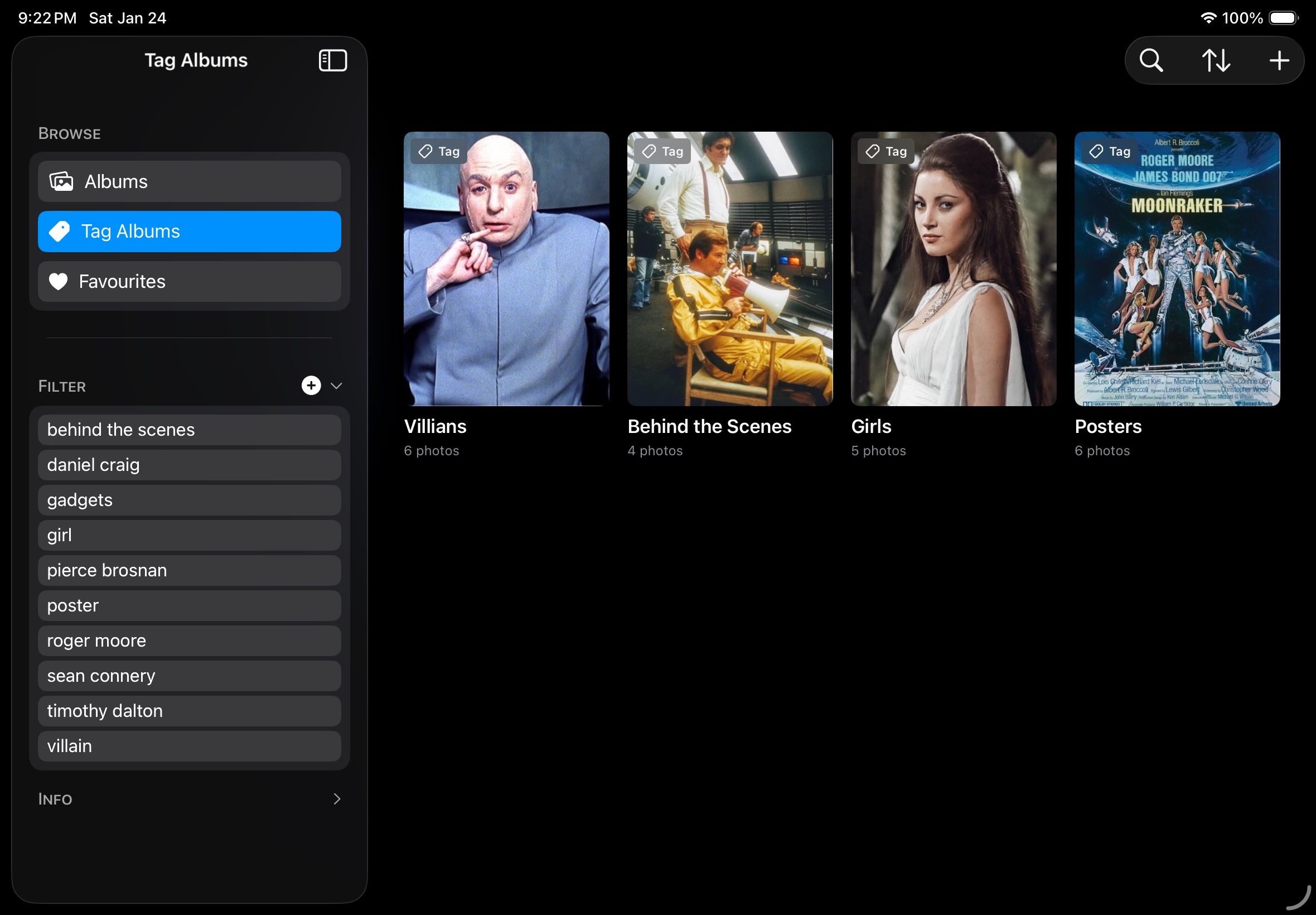
Tag Albums are dynamic collections that automatically show photos matching specific tags. Create a Tag Album by tapping the plus button and selecting ‘New Tag Album’. Choose which tags to include, and the Tag Album will always display photos that have all those tags, no matter which album they’re stored in. It’s perfect for cross-cutting views like “Summer + Beach” or “Portfolio + Completed”.
4) Slideshow View
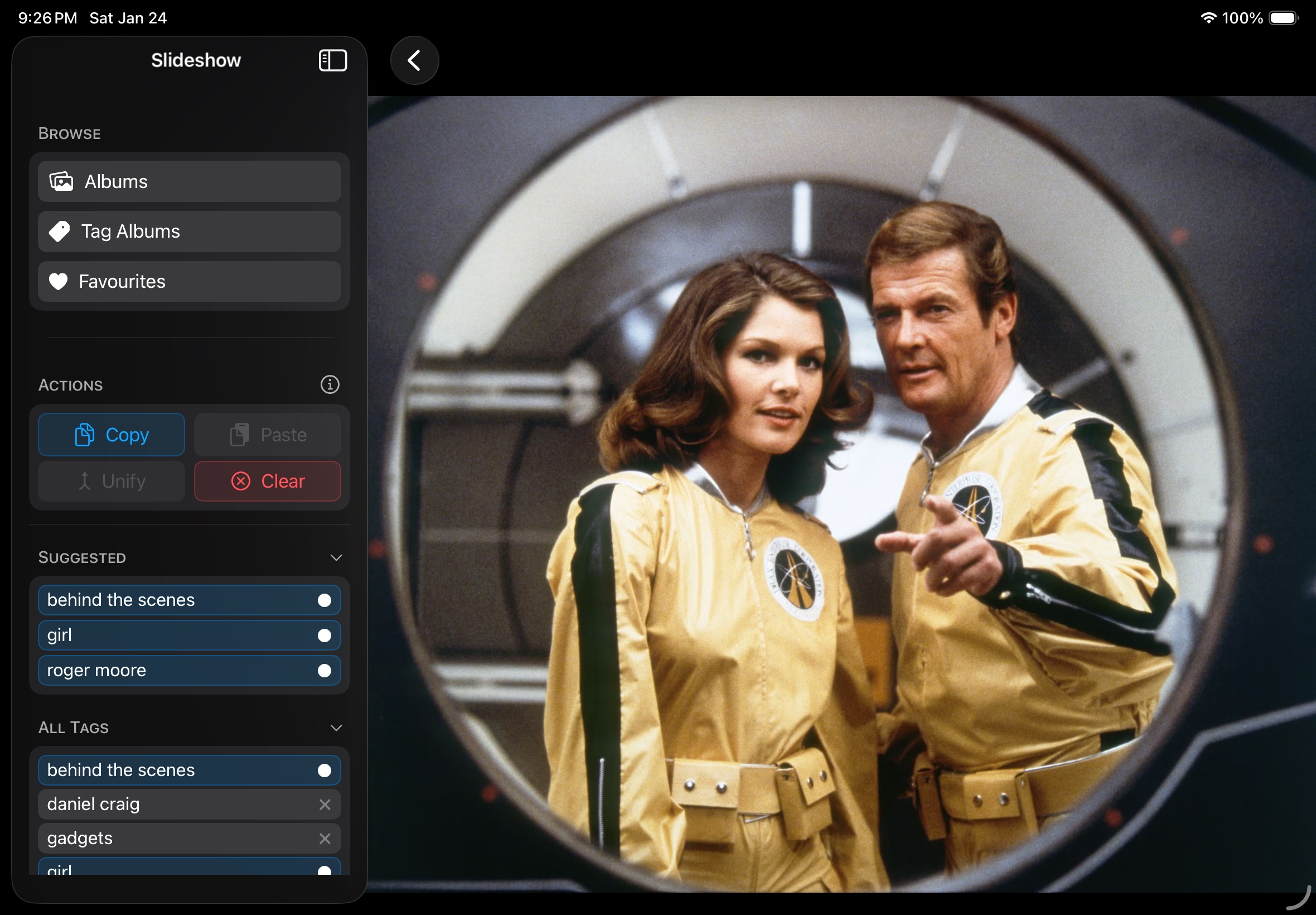
Tap any photo to enter the immersive slideshow view where you can swipe through your collection. Double-tap to zoom in and pan around high-resolution images. The slideshow respects your current filters, so if you’ve selected specific tags, you’ll only swipe through photos matching those tags. Swipe from the left or right edges to navigate between photos smoothly.
5) Favourites View
Access your favourites from the sidebar navigation. This special view groups all your favourited photos by album, making it easy to find your best shots. Tap any album header to view just the favourites from that album, or tap a photo to start a slideshow of favourites. Perfect for quickly sharing your highlights or reviewing your top picks.
6) Export & Share
Export individual photos or entire albums with ease. Long-press any photo and select ‘Export’ to save it to your device. For albums, use the context menu to ‘Export All Photos’ - perfect for backing up collections or preparing them for other apps. (Tip - You can export photos from Tag Albums too). Photos are exported with their original filenames and quality preserved.
Support
I hope you enjoy using the app, if you have any feedback for features you’d love to see or require any other assistance please get in touch.
Try It Out!
Organise your photos your way, and enjoy them in peace. App Store.